
distroClone and distroClone-backup: A Complete System Protection Strategy for Debian-Based Distributions
Anyone maintaining a customised GNU/Linux system eventually faces two distinct but related needs: a reliable backup to restore from in case of failure, and a bootable live ISO to deploy on new machines or preserve as a system snapshot. Until now, covering both scenarios required separate tools and manual procedures. distroClone and distroClone-backup solve both problems in a single, graphical, automated workflow.
This guide covers the features of each tool individually, then walks through the integrated workflow for running them together as a two-tier protection strategy.
distroClone — Live ISO Builder
distroClone is a graphical tool that generates bootable live ISO images directly from the running system. It works on any Debian-based distribution: Debian, Ubuntu, Linux Mint, LMDE, Elementary OS, SysLinuxOS, ZorinOS, and their derivatives.
How It Works
At startup, distroClone automatically detects the installed distribution, version, desktop environment, architecture, and kernel. The graphical interface is built on YAD (preferred) with Zenity as a fallback, and supports custom branding. A TTY mode is also available for headless or display-less environments.
The build process runs through approximately 30 automated steps:
– System detection and information gathering
– Welcome screen with a configuration summary
– Squashfs compression profile selection
– Live system password and hostname configuration
– Automatic installation of required packages (xorriso, mtools, isolinux, etc.)
– Full rootfs clone into a temporary working directory
– Compressed Squashfs filesystem generation
– Calamares installer integration with automatic branding
– Optional pause for custom branding insertion
– Dual boot support: UEFI and Legacy BIOS
– Final ISO assembly with xorriso
The output ISO is automatically named in the format `DistroName-Version-Desktop.iso`.
Squashfs Compression Profiles
distroClone offers three compression profiles selectable from the GUI:
Standard xz: 15–20 min Balanced size and speed
Fast lz4: 5–10 min Quick testing builds
Maximum xz+bcj: 25–35 min Minimum file size for distribution
System Requirements
– Debian-based system (Bookworm or later, Ubuntu 22.04+, Mint, LMDE, SysLinuxOS, ZorinOS 18+)
– At least 10–25 GB of free space on `/mnt`
– Runtime dependencies installed automatically: `yad`, `rsync`, `imagemagick`
Installation
wget https://github.com/fconidi/distroclone/releases/download/v1.3.4/distroClone_1.3.4_all.deb
sudo apt install ./distroClone_1.3.4_all.deb
sudo apt install -f
Usage
sudo distroClone
distroClone-backup — Incremental Rootfs Backup and Restore
distroClone-backup is the companion tool for ongoing system protection. It handles continuous rootfs backup, scheduled incremental backups, and one-click restore when something goes wrong.
How It Works
The GTK/YAD graphical interface presents a dashboard on first launch showing the detected distribution, kernel version, current cache status, backup size, and active cron schedule. All operations are controlled from this single interface without touching the terminal.
The backend is built on `rsync`. A full backup clones the entire rootfs to the configured cache directory, excluding virtual filesystems (`/proc`, `/sys`, `/dev`), system caches, temporary directories, and snap folders. Incremental backups use `rsync –checksum` to transfer only files changed since the last run.
Key Features
**Full Backup**
Complete rootfs clone via rsync. This is the mandatory baseline before any incremental backup can run. The cache is stored at `<cache-dir>/<distro>_backup/.rootfs_cache`. Typical duration: 5–20 minutes depending on system size.
**Incremental Backup**
Transfers only files modified since the last execution. Fast, space-efficient, and well-suited for automated nightly runs.
**Btrfs Snapshots**
When the destination resides on a btrfs filesystem, each backup automatically generates a read-only snapshot named `@YYYY-MM-DD_HH:MM`. Excess snapshots are deleted automatically based on a configurable retention policy (0–20 snapshots, default: 3). Any available snapshot can be selected for restore directly from the GUI.
**Cron Scheduler**
Automated backup scheduling is handled entirely from the GUI: choose frequency (daily, weekly, monthly), day of the week (for weekly schedules), execution time, and whether to receive a desktop notification on completion. The crontab entry is written automatically to the root crontab.
**Safe Restore**
The restore operation overwrites system files from the cache using rsync, always protecting `/home`, `/root`, and `/boot/efi`. The confirmation dialog displays the backup date, saved distribution name, saved kernel version, and cache size before proceeding.
**Configurable Cache Directory**
The cache can point to any path: an internal partition, an external USB drive, or an NFS mount. The default is `/mnt`.
**Optional /home Inclusion**
An option to include `/home` in the backup is available, with an explicit warning about the impact on disk space and backup duration.
**Real-Time Log**
Every operation is visible live in the log window and saved persistently to `/var/log/distroclone-backup.log`.
**Multilingual Interface**
Language is detected automatically from the `LANG` environment variable. Supported languages: Italian, English, German, French, Spanish.
System Requirements
– Debian-based system (Bookworm or later, Ubuntu 22.04+, Mint, LMDE, SysLinuxOS, ZorinOS 18+)
– At least 10–25 GB of free space on the destination
– Runtime dependencies installed automatically: `yad`, `rsync`, `imagemagick`
– Recommended: `btrfs-progs` for snapshot versioning
Installation
wget https://github.com/fconidi/distroclone-backup/releases/download/v1.2/distroclone-backup_1.2_all.deb
sudo dpkg -i distroclone-backup_1.2_all.deb
sudo apt install -f
# Optional — for btrfs snapshot support:
sudo apt install btrfs-progs
Usage
distroClone-backup
Using Both Tools Together: The Two-Tier Protection Strategy
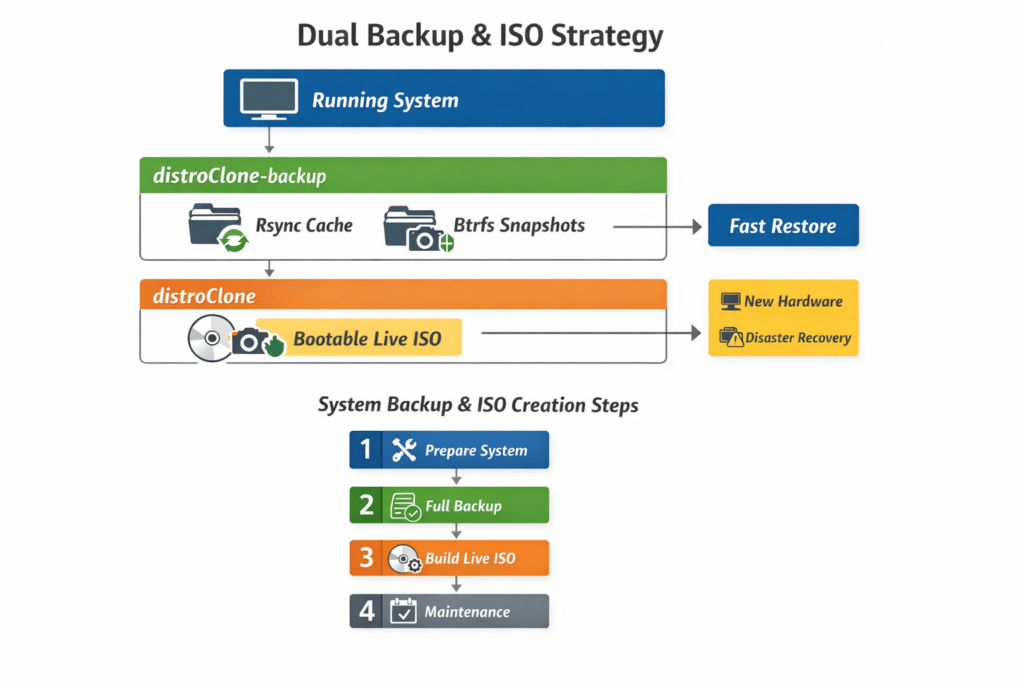
The real strength of these two tools becomes clear when they are used in combination. distroClone-backup protects the system on a daily basis; distroClone crystallises the system into a deployable live ISO. They are two complementary layers of protection and portability.
The Concept
Running System
│
├──► distroClone-backup → rsync cache + btrfs snapshots → FAST RESTORE
│ (automatic daily backup, continuous protection)
│
└──► distroClone → bootable live ISO → NEW HARDWARE / DISASTER RECOVERY
(run after each significant set of customisations)
Practical Workflow — Step by Step
**Phase 1 — System Preparation**
Install and configure your Debian-based system to the desired state: packages, configurations, desktop customisations, networking tools. This is the starting point for everything that follows.
**Phase 2 — First Full Backup with distroClone-backup**
Before any risky operation (major upgrade, kernel change, critical configuration edits), run a full backup:
1. Launch distroClone-backup from the application menu or run `distroClone-backup` in a terminal
2. Go to Settings and configure the cache directory (recommended: an external USB drive or a separate volume)
3. Click “Full Backup” and wait for completion (5–20 minutes)
4. Go to “Schedule Backup” and configure an automatic daily or weekly incremental backup
From this point, the system is protected. If anything breaks, clicking “Restore System” returns to the saved state within minutes.
**Phase 3 — Live ISO Creation with distroClone**
Once the system is in the desired state and the backup is current, generate the ISO:
1. Ensure sufficient free space is available on `/mnt`
2. Launch distroClone with `sudo distroClone`
3. On the welcome screen, verify the detected data: distribution, version, desktop environment
4. Select a compression profile (lz4 for speed, xz for minimum size)
5. Set the live system password and hostname
6. Click “Start Build” and wait (10–30 minutes)
7. The finished ISO will be in `/mnt/`, ready to write to a USB drive or archive as a snapshot
**Phase 4 — Routine Maintenance Cycle**
In the normal system lifecycle:
1. distroClone-backup runs automatically each night in the background, keeping the cache current
2. After any significant set of changes to the system (new tools installed, updated configurations), distroClone is run to refresh the ISO
3. Before major system upgrades, run a manual backup with distroClone-backup first, then proceed with the upgrade
Scenario: Kernel Upgrade
# Step 1 — Manual backup before the upgrade
distroClone-backup # Click “Full Backup” or run with –incremental-silent
# Step 2 — Upgrade the kernel
sudo apt update && sudo apt full-upgrade
# Step 3 — Reboot with the new kernel
sudo reboot
# Step 4 — Verify everything works
# Step 5 — If all is well: generate a new ISO with the updated kernel
sudo distroClone
If something fails at Step 4, open distroClone-backup and click “Restore System” to return to the pre-upgrade state.
Scenario: Disaster Recovery on New Hardware
The primary system fails irreversibly — a damaged disk, a dead motherboard. With both layers in place:
1. Boot the new machine from the ISO created with distroClone — a fully functional live environment with all your tools is immediately available
2. Install the system on the new hardware using Calamares (bundled in the ISO)
3. Mount the volume containing the distroClone-backup cache and run the restore — within minutes the system is identical to the original
Tips for Optimal Use
**Separate the destinations.** Use different directories for the distroClone-backup cache and for distroClone ISOs. Ideally, the backup cache goes on a dedicated volume or external drive; the ISOs go on a separate partition or NAS share.
**Schedule the backup, not the ISO.** distroClone-backup is well-suited for automatic scheduling. distroClone produces an ISO that should be run deliberately, as it requires 10–30 minutes and significant system resources.
**Back up before building.** Before every distroClone build, always run an updated incremental backup. This keeps the ISO and the backup cache synchronised in time.
**Use btrfs for the cache.** If possible, format the distroClone-backup destination volume as btrfs. Automatic snapshot versioning adds a third dimension of protection: not just the current system state, but also previous dated snapshots, all selectable from the GUI.
Quick Command Reference
Full backup (GUI): distroClone-backup
Silent incremental backup (cron): distroClone-backup –incremental-silent
Build a live ISO: sudo distroClone
Force English language: distroClone –lang=en
Both tools are open source, available on GitHub, and actively maintained as part of the SysLinuxOS project.
– distroClone: (https://github.com/fconidi/distroClone)
– distroClone-backup: (https://github.com/fconidi/distroclone-backup)
Guide to distroClone and distroClone-backup
enjoy 😉
