

How many times have you had a problem on your Linux system and knew exactly what you wanted to do, but not the exact command, the right flags, or the syntax of that one tool you use once every six months? terminal-system exists for that: describe the problem in natural language, an AI assistant (Claude Code or Codex, called non-interactively with no direct access to any tool of its own) translates the instruction into a shell command, and you see it appear ready to run, not something you just have to trust blindly.
Unlike a generic AI assistant you paste output and errors into by hand, terminal-system lives inside tmux right next to your real shell: the generated command is typed directly into the panel you’re working in, you confirm it (or edit it, or cancel it), and the result stays right there, in your own session.
How it works
A two-panel tmux layout: the left side is a normal shell, where commands actually run; the right side is an instruction prompt. You type what you want to achieve, the AI assistant translates it into one or more shell commands, and those commands are typed into the left panel in real time.
Launch it with the terminal-system command, or from the “Terminal System” entry in the SysLinuxOS Tools menu once installed. By default it starts with Claude Code; if Claude isn’t available it automatically falls back to Codex. To pick the engine explicitly: terminal-system claude or terminal-system codex.
> list files larger than 100MB in this directory
-> ran: find . -maxdepth 1 -type f -size +100M -exec ls -lh {} \;
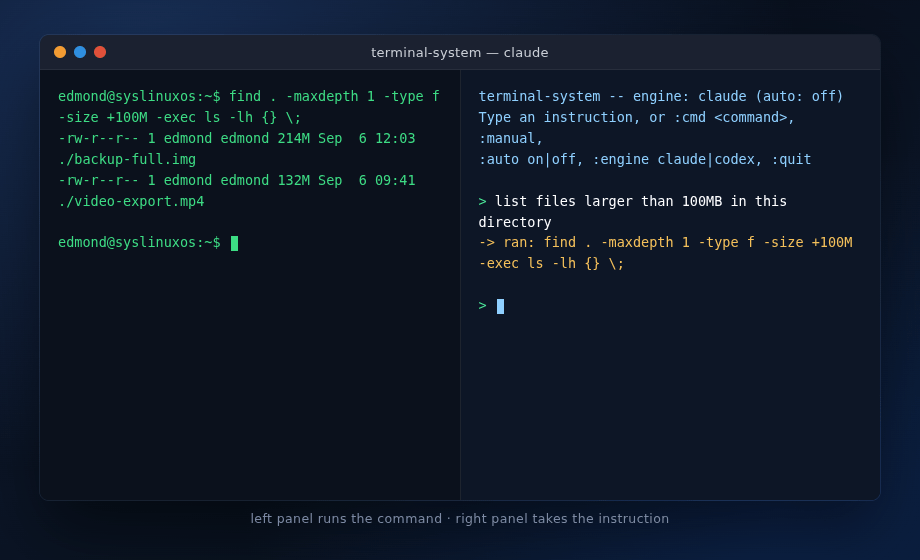
Session context is opt-in: with :context on, recent instructions and output are passed to the assistant with every request, so it can handle follow-ups (“delete it now”, “retry with sudo”). It’s off by default, so every request starts clean. Either way it’s never written to disk: it disappears the moment you close the session, or right away with :context clear.
Guide: usage options
The right panel accepts both natural-language instructions and special commands starting with :
| Command | Effect |
|---|---|
:cmd <command> |
Type a shell command manually, without going through the AI |
:manual |
Prompts for a manual command on the next line |
:auto readonly / :auto off |
Toggles automatic execution, only for a whitelist of read-only commands (default: off; :auto on still works as an alias) |
:context on|off|show|clear |
Toggles the session memory sent to the AI, shows it, or empties it (default: off) |
:engine claude / :engine codex |
Switches the AI engine for the rest of the session |
:quit |
Ends the session |
By default every command, generated or manual, waits for confirmation: Enter to run it, e to edit it first, n to cancel it. That’s the recommended mode for everyday use, you see what’s about to happen before it happens.
:auto readonly only executes a command automatically if its first word is a recognized read-only program (ls, cat, grep, ps, git status/log/diff, systemctl status and similar) and the line contains none of the shell metacharacters that could turn a harmless-looking command into something else (redirects, pipes, backticks, $(), semicolons, &). Anything else always asks, even in this mode. If one AI engine doesn’t respond, terminal-system automatically tries the other one, if available, before giving up.
Safety and awareness
One thing needs to be said plainly: terminal-system runs real commands on your system. It’s not a demo, it’s not a sandbox, if the AI generates a wrong command and you confirm it without looking, that command actually runs.
Some protections are built in:
- In
:auto readonly, a command skips confirmation only if it passes two checks: its first word is a recognized read-only program, and the line contains none of the shell metacharacters that could make it do something other than what it looks like (redirects, pipes, backticks,$(), semicolons, &). Anything not explicitly recognized as safe always asks, even in auto-mode. - As a second safety net, a fixed set of always-dangerous patterns (destructive
rm,mkfs,ddonto a device, fork bombs, any recursivechmodon/regardless of mode, shutdown/reboot,killall -9, removing root/sudo/admin users or groups,iptables -F, writes onto devices under/dev) forces manual confirmation regardless of the allowlist. - When a command is likely interactive (
sudo,ssh,passwd, an editor, a pager), focus moves to the left panel: passwords and interactive prompts are typed by you, directly into the shell running the command, never through the assistant. - terminal-system runs on its own dedicated tmux server, separate from the default one: the mouse shortcuts it sets up for copy-paste don’t touch your other tmux sessions.
But a list of dangerous patterns is not an absolute guarantee, it’s a safety net, not a substitute for judgment. The underlying rule stays the same: read the command before pressing Enter. terminal-system is genuinely good at solving problems on your own system, like disk space vanishing, services that won’t start, wrong permissions, logs to make sense of, precisely because it takes the burden of remembering exact syntax off your shoulders. But what runs on your machine is still your responsibility, not the assistant’s: use :auto readonly only for operations whose effect you understand, and keep it off while exploring a system you don’t know well.
One more limitation, specific to this kind of tool: on compressed instructions that ask for several things at once (“show me everything: kernel, uptime, memory, disk, network, upgradable packages”), the AI model sometimes glues two commands together with no space or semicolon between them (e.g. uname -auptimefree -h...), producing a line that looks like one command but is actually the wrong fusion of two. That’s model behavior, not a bug in the program that generates the command: no prompt wording fully eliminates it, only makes it rarer. On instructions like that, read the [CONFIRM] line more carefully than usual before pressing Enter — if something looks glued together with no space, press e to edit it or n to cancel.
When :context on is active, left-panel output is run through a filter that redacts the most common password/token/API-key patterns before being kept in memory, on a best-effort basis, not a guarantee: check with :context show before relying on it in a session where something sensitive showed up. Instructions and executed commands are still never written to disk either way: they stay in memory for the current tmux session only.
Installation
Debian / Ubuntu — prebuilt package
The GitHub Releases page has a ready-made .deb, no cloning required:
wget https://github.com/fconidi/terminal-system/releases/latest/download/terminal-system_1.1.7_all.deb
sudo apt install ./terminal-system_1.1.7_all.deb
Or build it from source instead:
git clone https://github.com/fconidi/terminal-system.git
cd terminal-system
bash build-deb.sh
sudo apt install ./terminal-system_*_all.deb
SysLinuxOS
Already packaged in the official APT repository:
curl -fsSL https://fconidi.github.io/SysLinuxOS-Tools/client/install-repo.sh | sudo bash
sudo apt update && sudo apt install terminal-system
Requires bash, tmux, xclip (for mouse-drag copy), and the claude and/or codex CLI already installed and authenticated, neither is a hard package dependency, since neither ships as a .deb on this system.
Version history
- 1.0.0 initial release: two-panel tmux launcher,
ts-braininstruction REPL, manual confirmation with edit/cancel, danger-pattern guardrail, focus handoff for interactive commands - 1.1.0 icon and SysLinuxOS Tools menu entry, mouse scrolling in both panels, up/down arrow history recall in the instruction prompt
- 1.1.1 mouse-drag selection now copies to the system clipboard via xclip (was missing on VTE terminals like mate-terminal), fixed codex use outside a git/trusted directory
- 1.1.3 types commands in 6-character chunks instead of one at a time (~6x fewer subprocesses), AI model configurable via
TS_CLAUDE_MODEL/TS_CODEX_MODEL - 1.1.5 replaced
:auto on‘s denylist with a read-only command allowlist (:auto readonly); session memory is now opt-in (:context on|off|show|clear) with automatic secret redaction; runs on its own dedicated tmux server instead of the one shared with other sessions - 1.1.6 the queue of generated commands now stops if a panel stays busy past 120s (e.g. an unanswered sudo password prompt), instead of continuing to type over a still-pending command
- 1.1.7 each command is now typed in a single call instead of in chunks (in rare cases, on long commands, chunked typing could desync tmux from the typed text); tightened the AI system prompt to reduce (not eliminate) glued-together commands — see the note in “Security and awareness”
Useful links
- Source code and prebuilt .deb on GitHub (also useful outside SysLinuxOS): github.com/fconidi/terminal-system
- APT repository: fconidi.github.io/SysLinuxOS-Tools
- Run
man terminal-systemafter installing for the full documentation
terminal-system: AI-assisted terminal (Claude Code, Codex) for your Linux system