

SysLinuxOS Service Manager is a graphical application to inspect and manage systemd services and daemons: you can start, stop, enable or disable them at boot and read their status. It works with both system and user services. It runs as your normal user; administrative operations go through a helper authorized with Polkit. This guide covers version 2026.10.1 for SysLinuxOS 13 and Debian 13 on amd64 systems.
Installing SysLinuxOS Service Manager
If the SysLinuxOS Tools repository is already configured, install the program with APT:
sudo apt update
sudo apt install syslinuxos-service-manager
To add the repository, follow the official instructions. The quick method uses the script that configures the APT source and the signing key:
curl -fsSL https://fconidi.github.io/SysLinuxOS-Tools/client/install-repo.sh | sudo bash
sudo apt update
sudo apt install syslinuxos-service-manager
The package targets SysLinuxOS 13 and Debian 13 on amd64 systems. After installation you can find the program in Applications → SysLinuxOS Tools, or start it from a terminal with syslinuxos-service-manager. Run it as your normal user, without sudo.
No further setup is needed: on startup the program lists the services found on the system.
The main window
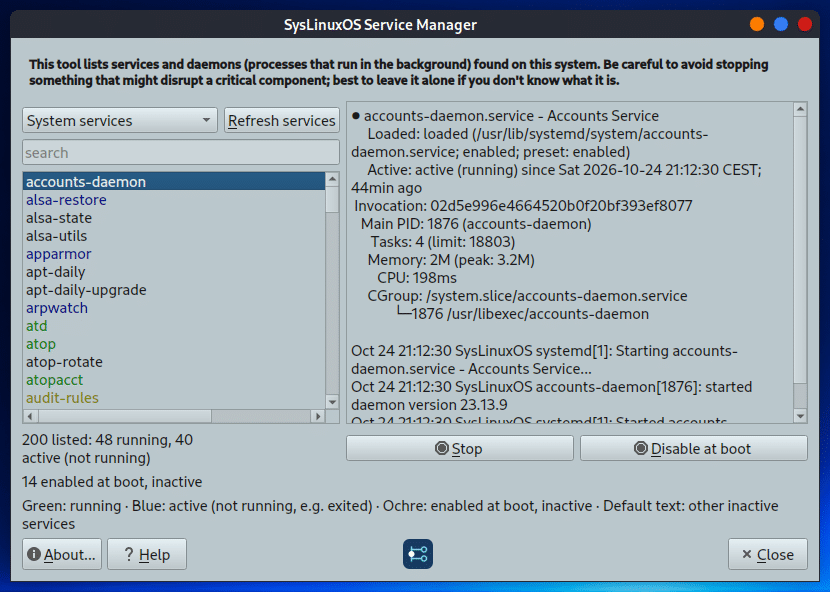
The list of services is on the left and the information about the selected one on the right, taken from systemctl status. At the top left, a drop-down menu chooses what to list: System services, User services, Active services, Services enabled at boot and Services disabled at boot. The Refresh services button reloads the list, and the search box filters by name: it matches names only, so “samba” may not find smbd and nmbd.
The counters are below the list. In the screenshot: 200 services listed, 48 running, 40 active but not running and 14 enabled at boot but inactive.
Service colors
Green: active and running.
Blue: active but not running, for example with the active (exited) state: a service can be active without a continuously running process.
Ochre: enabled at boot but inactive.
Default color: other inactive services, including disabled, static or masked ones.
The legend is always visible below the counters. Current state and boot enablement are two independent properties.
Starting, stopping and enabling
Two buttons sit below the information pane. The left one changes the current state: it shows Stop for an active service, including active (exited), and Start for an inactive one. The right one changes boot behavior: Disable at boot or Enable at boot. Select the service, press the button and, for a system service, authorize the operation; a message confirms the result.
After every action the program reads the real state from systemd: a service that does a job and exits can return to inactive right away, and that is normal. If Start fails because the service is masked, the message tells you it must be unmasked first: Service Manager does not remove the mask by itself.
Precautions
A warning at the top of the window says it plainly: stopping or disabling the wrong service can leave the system partially or completely unusable. If you do not know what a service does, leave it alone and read its status first. To see how services relate to running processes you can also run, in a terminal:
pstree
The interface follows the system language: English, Italian, French, German and Spanish. The built-in help is in English.
For jobs scheduled with cron, read the guide to SysLinuxOS Job Scheduler. For monitoring, cleanup and user services in a single window there is SysLinuxOS Care.
Downloads and source code
SysLinuxOS Tools APT repository with the syslinuxos-service-manager package (version 2026.10.1).
SysLinuxOS Service Manager is free software under GPL-3.0-or-later. It derives from MX Service Manager: the original credits are kept in the About dialog. SysLinuxOS adaptation: Franco Conidi.
Leggi l’articolo in italiano: SysLinuxOS Service Manager gestione dei servizi systemd.
SysLinuxOS Service Manager managing systemd services
Pingback: SysLinuxOS Job Scheduler: graphical cron editor
Pingback: SysLinuxOS Care: system cleanup and monitoring