

SysLinuxOS Job Scheduler is a graphical editor for cron, the standard Linux tool for running commands at set times. Instead of writing the crontab by hand, you pick the time and command in a window and preview the upcoming runs. It manages your own jobs and, with authorization, system jobs. This guide covers version 2026.10.1 for SysLinuxOS 13 and Debian 13 on amd64 systems.
Installing SysLinuxOS Job Scheduler
If the SysLinuxOS Tools repository is already configured, install the program with APT:
sudo apt update
sudo apt install syslinuxos-job-scheduler
To add the repository, follow the official instructions. The quick method uses the script that configures the APT source and the signing key:
curl -fsSL https://fconidi.github.io/SysLinuxOS-Tools/client/install-repo.sh | sudo bash
sudo apt update
sudo apt install syslinuxos-job-scheduler
The package targets SysLinuxOS 13 and Debian 13 on amd64 systems. After installation you can find the program in Applications → SysLinuxOS Tools, or start it from a terminal with syslinuxos-job-scheduler. Run it as your normal user, without sudo.
Installing the program does not modify any crontab or create jobs: it changes something only when you press Save and confirm. The cron service must be running for jobs to start; you can check it with systemctl status cron.
How to read a cron time string
Cron describes when to run a command with five fields: minute, hour, day of month, month and day of week. An asterisk means “every”. A few examples:
0 3 * * *       every day at 03:00
*/15 * * * *    every 15 minutes
30 18 * * 1-5   at 18:30, Monday to Friday
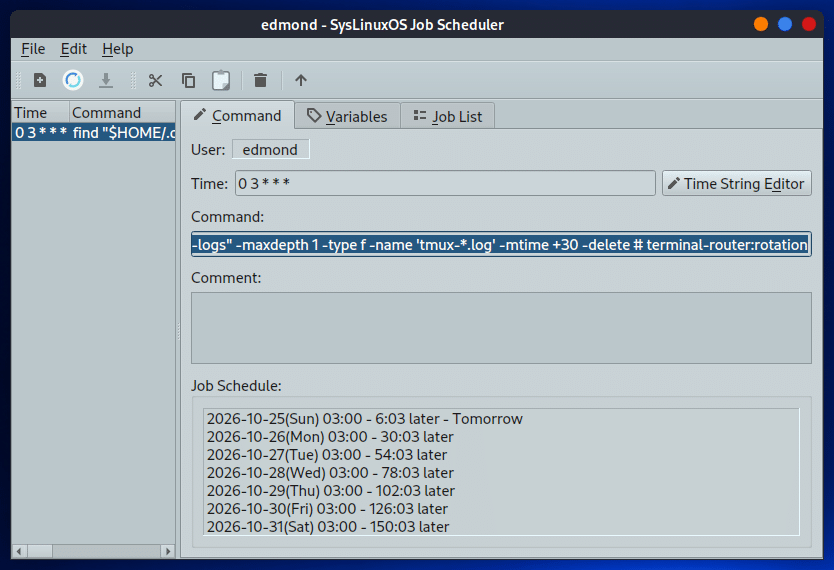
In the screenshot the time is 0 3 * * *, and the Job Schedule list shows the upcoming runs: every day at 03:00, with the time left until each one.
Creating and editing a job
1. New item. Press New Item in the toolbar to get an empty entry to fill in. The list on the left shows the time and command of every job.
2. Time. Type the string in the Time field or press Time String Editor: pick minutes, hours, days and months by clicking the numbers on the clock face, and the cron string updates in real time.
3. Command and comment. Enter the command and, if you like, a comment. The Job Schedule list below changes as you edit the time, so you can see right away when the job will run.
4. Save. Nothing changes until you press Save and confirm. Reload reloads the last saved list. The toolbar also has cut, copy, paste and delete to duplicate or remove jobs.
Variables and job list
The Variables tab sets the environment variables your commands need: PATH, SHELL and HOME are already there. The Job List tab lists all scheduled jobs and when they will run; use Max Item and Max Date to limit the number of entries and the end date, then press Update.
System jobs
The program shows one user’s jobs at a time. To edit those of root, other users, /etc/crontab and the /etc/cron.d folder, use File → Open Administrator Session and authenticate with Polkit. A separate window opens; close it to return to your own session. The administrator session works on MATE with X11 and is not supported on Wayland.
Precautions
Before editing a complex crontab, make a copy:
crontab -l > ~/crontab-backup.txt
When it saves, the editor rewrites the entries: formatting and blank lines may change, while comments are kept. The upcoming-runs list is a preview, not a log of what has run. The program manages cron, not systemd timers, and does not see jobs scheduled by other means.
The interface follows the system language: English, Italian, French, German and Spanish.
To see which services are running and which start at boot, read the guide to SysLinuxOS Service Manager. For system monitoring and cleanup there is SysLinuxOS Care.
Downloads and source code
SysLinuxOS Tools APT repository with the syslinuxos-job-scheduler package (version 2026.10.1).
SysLinuxOS Job Scheduler is free software under GPL-3.0-or-later. It derives from MX Job Scheduler, itself based on qroneko: the original credits are kept in the About dialog. SysLinuxOS adaptation: Franco Conidi.
Leggi l’articolo in italiano: SysLinuxOS Job Scheduler editor grafico per cron.
SysLinuxOS Job Scheduler graphical cron editor