

Terminal-system 1.2.1 turns plain-language requests into Linux commands you can inspect before they run. This guide updates the original introduction with installation steps, practical usage and every command available in the new version.
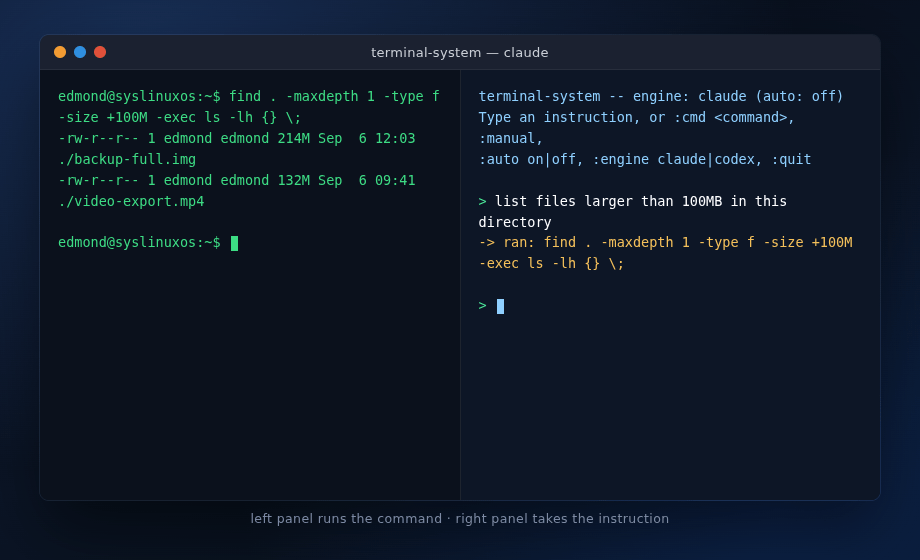
How terminal-system 1.2.1 works
A real shell occupies the left tmux pane; you type requests in the right one. Claude Code or Codex proposes one or more commands, which you can confirm, edit or cancel. The AI engine does not run commands directly: terminal-system types them into the left pane after your decision.
Since the previous guide, the application gained risk information for each proposal, command explanations, error diagnosis with :fix, step-by-step work with :follow and passive observation with :watch. Version 1.2.1 stops a command batch after cancellation or an interrupted wait, and reports :cmd as completed only when the completion signal arrives.
Installation
SysLinuxOS APT repository
If the SysLinuxOS Tools repository is already configured, install or upgrade the package:
sudo apt update
sudo apt install terminal-system
Otherwise follow the repository instructions or use its setup script:
curl -fsSL https://fconidi.github.io/SysLinuxOS-Tools/client/install-repo.sh | sudo bash
sudo apt update
sudo apt install terminal-system
Debian package for Debian/Ubuntu
The ready-made package is in the 1.2.1 release. From your download directory:
wget https://github.com/fconidi/terminal-system/releases/download/v1.2.1/terminal-system_1.2.1_all.deb
sudo apt install ./terminal-system_1.2.1_all.deb
The package depends on bash and tmux; xclip helps with mouse copying on desktops that need it. Install and authenticate at least one of the claude or codex CLIs separately. Check the version with terminal-system --version.
Start a session and try a command
terminal-system
terminal-system claude
terminal-system codex
Without arguments the launcher chooses Claude Code if available, otherwise Codex. You can also use the Terminal System entry in the SysLinuxOS Tools menu. In the right pane try “show free disk space and tell me which filesystem is almost full”. The generated command appears on the left and waits for confirmation. If the AI CLI stops responding, terminal-system tries the other available engine.
Confirmation and automatic mode
Every proposed command, including one entered with :cmd, normally needs a choice: Enter to run, e to edit, ? to request an explanation or n to cancel. A proposal can include a short rationale and risk level. A high-risk command, or one matching a built-in dangerous pattern, requires you to type the short code shown on screen; Enter alone cannot execute it.
:auto readonly skips confirmation only for recognized read-only commands without pipes, redirection, command substitution or chaining. Anything not recognized as safe still asks. :auto on is an alias; automatic mode starts off.
Every right-panel command
| Command | How to use it |
|---|---|
:cmd <command> |
Type a command without asking the AI. Example: :cmd df -h. Confirmation still applies. |
:manual |
Prompt separately for a manual command, then show it for confirmation. |
:auto readonly |
Automatically run only recognized read-only commands. :auto on is an alias. |
:auto off |
Disable automatic execution; this is the startup setting. |
:context on |
Keep recent instructions, commands and output in session memory for later requests. |
:context show |
Display and inspect the stored context. |
:context clear |
Clear stored context without changing its on/off setting. |
:context off |
Disable context and clear session memory. |
:fix |
After a failure, ask the AI for a diagnosis using the command, exit status and recent output. |
:fix on / :fix off |
Enable or disable automatic diagnosis of future failures; off by default. |
:follow <goal> |
Work toward a goal one step at a time, using each result to choose the next step. Limit: five steps. |
:explain |
Explain the last executed command and its output. |
:explain <command> |
Explain a command without running it, for example :explain journalctl -u ssh. |
:watch on |
Open an observer pane and ask for advice only when output looks like an error. |
:watch all |
Ask for advice after every output change, even without an apparent error. |
:watch pause / :watch resume |
Pause or resume observation. F9 and F10 do the same; output shown during a pause is discarded. |
:watch off |
Close the observer pane. |
:engine claude / :engine codex |
Switch the AI engine for the rest of the session. |
:quit |
Close the terminal-system session. |
Using the new features
Diagnose failures with :fix
After a command fails, the right pane reports its exit status. With :fix, the model receives the command, status and last 30 lines of the left pane after best-effort redaction of common secrets. It may suggest a corrective command, which always needs confirmation. :fix on enables automatic diagnosis of future failures; :fix off disables it.
Pursue a goal with :follow
:follow check why the ssh service is inactive
The model proposes a step, waits for the result and decides the next one. Every step retains the confirmation rules. The loop stops when the AI replies DONE, when you cancel, when the same step repeats or after five steps.
Explain and observe
Use :explain ls -la to understand a command before running it, or :explain after execution to interpret the output. :watch on passively watches for possible errors; :watch all asks after every change. The first use of :watch asks for consent before sending output to the AI provider. F9 or :watch pause stops reading; F10 or :watch resume resumes.
Context, privacy and waiting
Every request includes basic environment facts: distribution, user, directory, Git branch, shell and foreground program. It does not automatically include terminal output. Optional :context on keeps recent output in memory for later requests; :context show lets you inspect what is stored. Context starts off and terminal-system does not save it to disk. The shell in the left pane may still keep its normal command history.
Password and token redaction is best effort only: consider what is visible before enabling :context on, :fix on or :watch all. :follow and :explain also send relevant output to the AI provider. If a command asks for a password, confirmation or pager input, focus moves to the left pane. A periodic status appears after 10 seconds; a command lasting at least 15 seconds triggers a completion notification. Ctrl-C in the right pane stops waiting but does not necessarily stop the command still running on the left. The default maximum wait is 30 minutes.
Inspect proposed commands before authorizing real system changes. For related tools see terminal-router 1.1.0 for Cisco and Huawei and SysLinuxOS Care for monitoring and maintenance.
Downloads and source code
Source code and README
1.2.1 release and Debian package
SysLinuxOS Tools APT repository
After installation: man terminal-system.
Leggi l’articolo in italiano: terminal-system 1.2.1: guida completa a comandi e installazione.
terminal-system 1.2.1: complete command guide