

DistroMove moves an already installed, running Debian-based Linux system to newly created partitions on another SSD or the same disk. You can keep your applications, settings and data without reinstalling the operating system. Version 0.1.23 guides disk allocation, prepares UEFI boot, checks the copy and keeps the original installation available until you explicitly approve its removal.
DistroMove: a new way to organise space across SSDs and partitions
Have you added a faster SSD, or do you want to reclaim space occupied by an old installation? DistroMove places the running system in new partitions created in free space, including on a different drive. After booting and checking the destination, you can remove the old partitions from the same interface. This lets you reorganise where an installed system lives without starting over. Test ok on SysLinuxOS 13 and Debian 13.
Linux already has partition editors such as GParted and cloning tools such as Clonezilla. DistroMove offers a distinct guided workflow combining migration of the running system, boot preparation, copy checks and a separate decision to remove the source. It does not arbitrarily move or resize existing partitions: the destination needs unallocated space on a GPT disk.
Requirements and checks before you start
The current release targets Debian-based x86-64 systems booted through UEFI, using GPT, GRUB and initramfs-tools. It supports ext4 and single-device Btrfs, with or without LUKS encryption. Legacy BIOS boot, LVM, RAID, ZFS and multi-device Btrfs are not supported. The destination needs enough unallocated space. Initialising an empty disk as GPT requires an additional confirmation of the physical device identity.
Make an independent backup of important data before moving anything. Keep your LUKS passphrase available if applicable, connect reliable power and have recovery media ready. Check the destination drive carefully: creating partitions changes its partition table. Close applications that continuously write to storage, especially databases and containers, and follow the service warnings on the Source page. A live copy cannot guarantee application consistency for active databases.
Install from the APT repository
If SysLinuxOS-Tools is already configured, update package indexes and install DistroMove:
sudo apt update
sudo apt install distromove
Otherwise download and inspect the official repository setup script, run it with administrator privileges, and install the package:
curl -fsSLO https://fconidi.github.io/SysLinuxOS-Tools/client/install-repo.sh
less install-repo.sh
sudo bash install-repo.sh
sudo apt update
sudo apt install distromove
The repository code and setup instructions are available in SysLinuxOS-Tools. Later updates arrive through APT.
Install the .deb package manually
Download distromove_0.1.23_all.deb from the 0.1.23 release and install it using APT so dependencies are resolved:
curl -fL -o distromove_0.1.23_all.deb https://github.com/fconidi/DistroMove/releases/download/v0.1.23/distromove_0.1.23_all.deb
sudo apt install ./distromove_0.1.23_all.deb
Check the downloaded file with sha256sum distromove_0.1.23_all.deb. Expected SHA-256: 1ec7206bbfe669b9b943c38a3863411f5f703ae6e947200e4bf36ed11ee22b1f.
Step-by-step migration guide
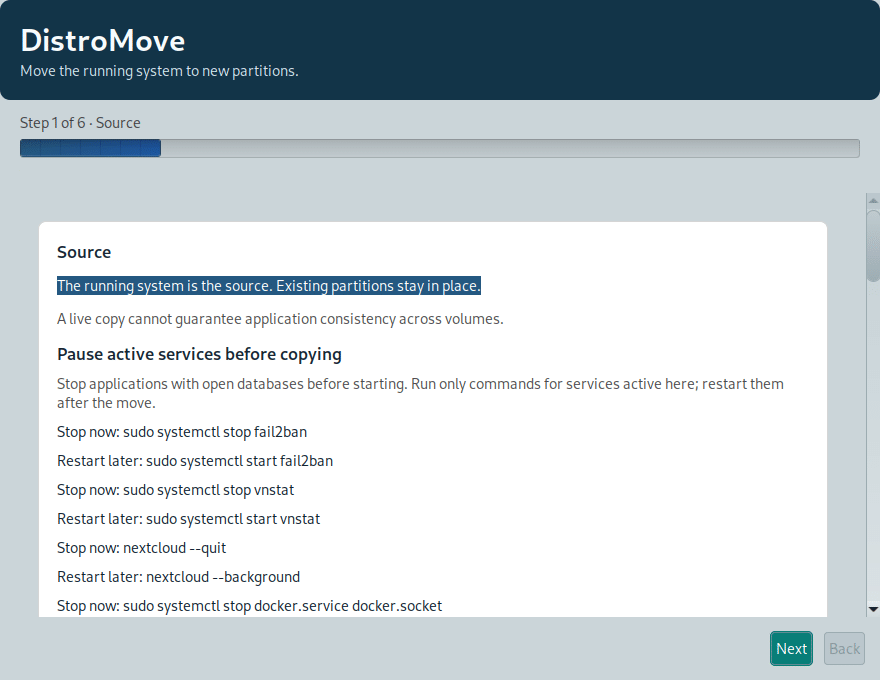
1. Start the application. Open DistroMove from the application menu or run distromove as a regular user. The helper requests administrator authorisation when needed. On Source, check the running system and read the warnings about services to pause. Keep the suggested restart commands for later.
2. Choose a destination. On Destination, select the correct disk and sizes for the proposed new partitions or volumes. Check capacity, unallocated space and existing partitions that must remain. DistroMove does not shrink an occupied partition automatically. Follow the suggested EFI System Partition reuse or creation and review the final plan.
3. Set up encryption. If you choose a LUKS destination, enter and repeat a new passphrase. Store it safely before continuing: you will need it at first boot. The interface explains the configuration of the encrypted volumes.
4. Review the plan. The Review page lists the source, target, sizes and planned operations. Previewing the plan does not change any disk. Read device names and capacities carefully and continue only if they match your choice.
5. Wait for copy and verification. Follow the Progress page until the final result. Do not power off, disconnect drives or restart paused services during the copy. DistroMove configures boot only after copy checks. If the operation stops, read the result before trying again.
6. Reboot and check the new system. After a successful result, restart, select the new UEFI entry if necessary, and confirm that the system boots from the destination. Check files, applications and any separate volumes; then restart paused services. If boot fails, the original installation is still available. Keep it intact.
7. Reclaim the old space. Only after confirming a successful boot and your required data, use Delete old system. This is a separate operation requiring explicit confirmation. Check the listed partitions a second time: deletion frees the former space and cannot be undone like a boot entry change.
Precautions, limitations and troubleshooting
A backup is necessary even though DistroMove preserves the source during migration. Free space alone does not prove that a drive is empty or safe to reuse. For active databases or virtual machines, use their own shutdown and backup procedures. If a migration plan is unavailable or unsupported, check UEFI mode, GPT, file system, available space and the unsupported layouts above. Administrators can read the error log at /var/lib/distromove/last-error.log.
For help managing boot entries, see the SysLinuxOS Boot and GRUB guide. To prepare USB recovery media, follow the DistroFlash guide.
Downloads and source code
Package and release notes: DistroMove 0.1.23 on GitHub. Source code and documentation: DistroMove repository. APT repository: SysLinuxOS-Tools.
Leggi l’articolo in italiano: guida all’installazione e all’uso di DistroMove.
DistroMove: move your system without reinstalling