

SSH EasyGUI makes SSH setup quick: each named profile stores the address, client key and expected host key. The same application runs as a command-line tool on a server without a display and as a GTK 4 window on a desktop. After pairing, connect with a click, transfer files or enable the optional integration and keep using plain ssh. This guide covers version 0.4.10 and uses documentation addresses: replace them with your own.
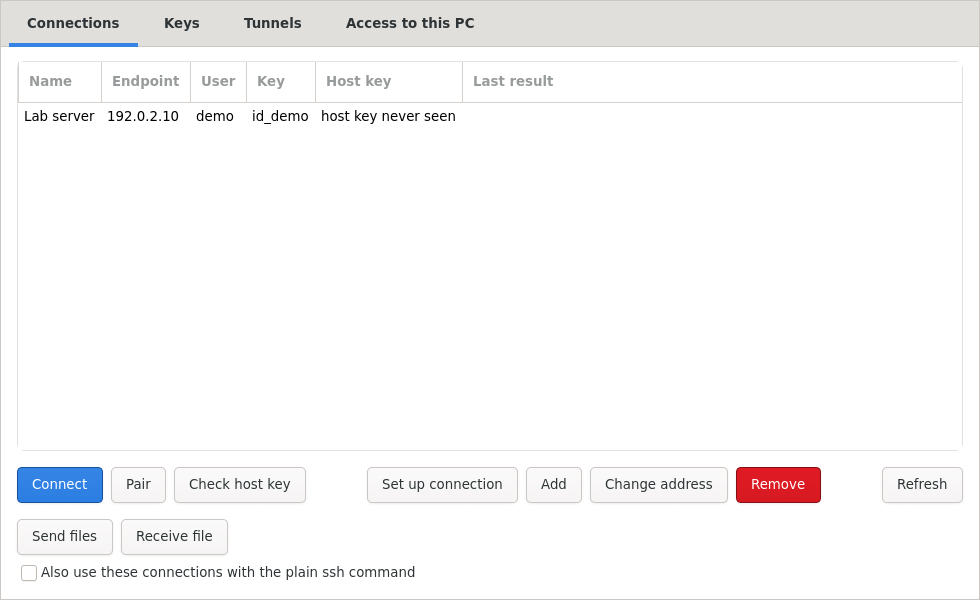
The sample profile in the screenshot has not been paired yet. “Host key never seen” means that its first host-key confirmation is still pending.
What SSH EasyGUI makes easier
The setup flow creates an Ed25519 key, displays the remote host fingerprint, installs only the public key on the remote account and tests key-only login. The profile name remains stable when a DHCP address changes. Its host key is pinned to that profile: if another machine appears at the address, the connection stops for an explicit decision.
The application uses OpenSSH. It does not replace the protocol or prevent the use of ssh, scp or rsync. A headless server needs only the CLI package; add the desktop package on a computer with a display. Each direction has its own profile and client key.
Installation on a headless server and a desktop PC
SSH EasyGUI is declared for SysLinuxOS 13 and Debian 13. Because it relies on components found in almost every Debian-based distribution (OpenSSH, Python 3, GTK 4, VTE), it should work on many derivatives, but we have not tested them. Requirements: the core package needs python3 (≥ 3.11) and openssh-client; the desktop package adds python3-gi, gir1.2-gtk-4.0 and gir1.2-vte-3.91.
Version 0.4.10 packages are declared for SysLinuxOS 13 and Debian 13. Install trusted .deb files with APT from the directory containing them. A headless server needs only the core package:
sudo apt install ./ssh-easygui_0.4.10_all.deb
ssh-easygui --version
On a desktop, install core and desktop together. Start the window from the SysLinuxOS Tools menu or with:
sudo apt install ./ssh-easygui_0.4.10_all.deb ./ssh-easygui-desktop_0.4.10_all.deb
ssh-easygui-gui
The optional ssh-easygui-receive package depends on openssh-server and is for a computer that must accept incoming connections. Core and desktop alone do not install or start an SSH server. For APT repository instructions once this package is available, see the SysLinuxOS Tools repository; do not assume SSH EasyGUI is already listed there.
Prepare a server without a display
Use its local terminal, console or an existing connection. Run client commands as the account that should own the profiles; use sudo only for APT or service management. server-setup asks separately before installation and service startup and uses sudo when the caller is not root:
ssh-easygui host-info
ssh-easygui server-setup
ssh-easygui host-info
If the server presents an Ed25519 host key, read its fingerprint directly on the server console and compare it with the client prompt before trusting it:
ssh-keygen -lf /etc/ssh/ssh_host_ed25519_key.pub
The application does not open firewall ports. If the server cannot be reached, check its address, SSH port and network policy. LAN Discovery can help find a host on the LAN, while the DHCP-GUI guide explains DHCP reservations for stable addresses.
First CLI connection in a few steps
On the client, setup combines profile creation, key creation and pairing. Host-key confirmation is interactive; the remote account password is needed only to install the public key. A fingerprint obtained over the network is not independently verified: compare it with the server console when possible.
ssh-easygui setup "Lab server" --host 192.0.2.10 --user demo --file id_server_lab --label "Server access"
ssh-easygui show "Lab server"
ssh-easygui connect "Lab server"
For an existing profile, retry with ssh-easygui pair "Lab server". If the server address changes, ssh-easygui pair "Lab server" --host 192.0.2.20 updates its endpoint while retaining the profile identity. For connections in the opposite direction, enable an SSH server on the PC and create a separate profile and key on the headless server.
Where the data is stored
- Client keys: in
~/.ssh/, using the file name you choose (for example~/.ssh/id_lab_serverandid_lab_server.pub). - Profiles:
~/.config/ssh-easygui/profiles.json. The host keys pinned by profiles are in~/.config/ssh-easygui/known_hosts, a file owned by the app: your own~/.ssh/known_hostsis not used. - Verification: each profile uses a dedicated host-key alias with
StrictHostKeyChecking yes, so two servers that hold the same IP address at different times are never confused. - Optional integration:
~/.config/ssh-easygui/ssh_config, pulled in by a singleIncludeline in~/.ssh/config. - Connection reuse: control sockets live in
~/.ssh/cm-%C. - Private passphrase agent: its socket sits in the user runtime directory, separate from your own ssh-agent.
If ~/.ssh/known_hosts or /etc/ssh/ssh_known_hosts already holds a different host key for the same address, pair and check report it (“already trusts a different host key”) and pair stops without sending anything. Check the server, and fix that file only if the change is legitimate.
Key passphrases
key-create and setup use ssh-keygen, which asks for the passphrase in the terminal. It can be left empty, but that is discouraged: anyone who copies the private file gets access. With a passphrase, every use asks for it unless you run unlock, which keeps it in the private agent for a limited time (default 240 minutes, ended by lock). Saved tunnels and non-interactive scripts cannot prompt: unlock the key first, or use a dedicated key restricted on the server for that purpose.
Every CLI command: profiles, keys and trust
| Command | Purpose |
|---|---|
ssh-easygui add NAME --host HOST --user USER [--port PORT] [--key KEY] |
Create a profile without connecting. |
ssh-easygui setup NAME --host HOST --user USER [--port PORT] [--key KEY | --file FILE --label LABEL] |
CLI setup: profile, key, host key confirmation, public key installation and test login. Requires an interactive terminal. |
ssh-easygui set-endpoint NAME --host HOST [--port PORT] |
Change the address; supply the port too if it is not 22. |
ssh-easygui set-via NAME [JUMP] |
Set an already paired bastion; omit JUMP to remove it. |
ssh-easygui set-multiplex NAME on|off |
Enable or disable SSH connection reuse. |
ssh-easygui rename NAME NEW_NAME |
Rename a profile. |
ssh-easygui remove NAME |
Remove the local profile without automatically deleting keys or remote authorizations. |
ssh-easygui list |
List profiles, addresses, keys and status. |
ssh-easygui show NAME |
Show addresses, key, fingerprint and settings for a profile. |
ssh-easygui key-create LABEL [--file FILE] [--profile NAME] |
Generate an Ed25519 key and prompt for its passphrase; optionally assign it to a profile. |
ssh-easygui key-import PATH [--name NAME] |
Register an existing key pair by reference, without copying it. |
ssh-easygui key-list |
List keys, fingerprints, labels and permissions. |
ssh-easygui key-remove NAME |
Delete a managed key from ~/.ssh; for an imported key, remove only its registration. Refuses keys used by profiles, including aliases. |
ssh-easygui key-use NAME KEY |
Assign a registered key to a profile. |
ssh-easygui pair NAME [--host HOST] [--port PORT] |
Confirm the host key, install the public key and verify login; –host updates the address. |
ssh-easygui check NAME |
Compare the presented host key with the profile pin. |
ssh-easygui trust NAME [--verified] |
Explicitly pin or replace a host key; –verified marks an existing pin checked out of band. |
ssh-easygui reconcile |
Suggest endpoint corrections when DHCP addresses and host keys indicate a swap. |
Uppercase words are placeholders. key-create, setup, pair, trust and reconcile need an interactive terminal when they prompt for confirmation or a passphrase. key-remove deletes a managed key from disk, so check the name carefully; imported keys are only unregistered.
Every CLI command: sessions, files and plain ssh
| Command | Purpose |
|---|---|
ssh-easygui connect NAME |
Open an interactive session with the profile key and host pin. |
ssh-easygui unlock [NAME] [--minutes N] |
Unlock a key temporarily in the private agent; with no NAME show status. Default: 240 minutes. |
ssh-easygui lock |
Clear and stop the app private agent. |
ssh-easygui ssh-config on|off|status |
Enable, remove or inspect optional plain OpenSSH integration. |
ssh-easygui send NAME FILE [FILE ...] |
Send one or more files to the remote home; same-name files may be replaced. |
ssh-easygui receive NAME REMOTE_PATH --to DIR |
Receive one exact remote file; never overwrite an existing local file. |
Sending places files in the remote account home and may replace same-name files. Receiving uses one exact remote path and refuses to overwrite an existing local file. Unlock a key for a limited period to avoid entering its passphrase for every operation; the default is four hours.
ssh-easygui unlock "Lab server" --minutes 60
ssh-easygui send "Lab server" archive.tar.gz
ssh-easygui receive "Lab server" archive.tar.gz --to ~/Downloads
ssh-easygui lock
Every CLI command: tunnels, bastions, rsync and SSHFS
| Command | Purpose |
|---|---|
ssh-easygui tunnel-add NAME --type local|remote|socks --listen PORT [--target HOST:PORT] |
Save a tunnel; target is required for local and remote, not SOCKS. |
ssh-easygui tunnel-list |
List tunnel IDs, direction, target and state. |
ssh-easygui tunnel-start ID |
Start a tunnel in the background; unlock an encrypted key first. |
ssh-easygui tunnel-stop ID |
Stop a running tunnel. |
ssh-easygui tunnel-remove ID |
Stop and delete a tunnel definition. |
ssh-easygui rsync NAME ARGS... |
Run rsync with the profile key and host pin; :path marks the remote side. |
ssh-easygui mount NAME REMOTE_PATH MOUNTPOINT |
Mount an SSHFS folder; requires sshfs and FUSE. |
ssh-easygui unmount MOUNTPOINT |
Unmount a folder mounted by SSH EasyGUI. |
ssh-easygui copy-id USER@HOST[:PORT] [--name NAME] [--key KEY | --file FILE] [--once] |
Prepare a new host with profile, key and pairing; –once keeps the key but removes the temporary profile. |
Saved tunnel listeners bind to 127.0.0.1 only. Tunnels run in the background without a passphrase prompt, so unlock an encrypted key first. A bastion must already be a paired profile with its own pinned host key. rsync needs rsync on both computers; mount needs sshfs and FUSE on the client plus an empty local directory.
ssh-easygui set-via "Lab server" "Bastion"
ssh-easygui set-multiplex "Lab server" on
ssh-easygui tunnel-add "Lab server" --type local --listen 8080 --target 127.0.0.1:80
ssh-easygui tunnel-list
ssh-easygui tunnel-start ID
ssh-easygui tunnel-stop ID
ssh-easygui rsync "Lab server" -av ./documents/ :backup/
mkdir -p ~/mnt/server-log
ssh-easygui mount "Lab server" /var/log ~/mnt/server-log
ssh-easygui unmount ~/mnt/server-log
Every CLI command: local server and incoming access
| Command | Purpose |
|---|---|
ssh-easygui host-info |
Show local SSH service, ports, addresses and host fingerprints. |
ssh-easygui server-setup |
Install an SSH server if missing and enable/start it in confirmed steps. |
ssh-easygui access-list |
List managed public keys authorized for this account. |
ssh-easygui access-add --file PUBKEY --label LABEL |
Authorize a public key for the current user. |
ssh-easygui access-revoke ID |
Revoke an entry added by the app without touching other entries. |
The access-* commands apply to the local account running them. access-revoke removes an entry managed by the app; it is not a general cleanup of authorized_keys. Run ssh-easygui --help or ssh-easygui COMMAND --help for the current options.
GTK window: Connections tab
Start ssh-easygui-gui. In Connections, select a row before using profile actions. Set up connection asks for name, host, user, port, key filename and label. It creates the key, shows the host fingerprint, installs the public key and tests the login. Add stores only a profile; Pair completes pairing.
Connect: open an integrated terminal tab.
Check host key: compare the server with its pin and offer explicit replacement if the key changed.
Change address: edit name, host, port, key, bastion and connection reuse.
Remove: delete the profile after confirmation; Refresh reloads the view.
Send files: select multiple files and confirm before sending; Receive file: enter the remote path and local folder.
Also use these connections with the plain ssh command: enable or disable OpenSSH integration.
Keys tab: create, unlock and manage keys
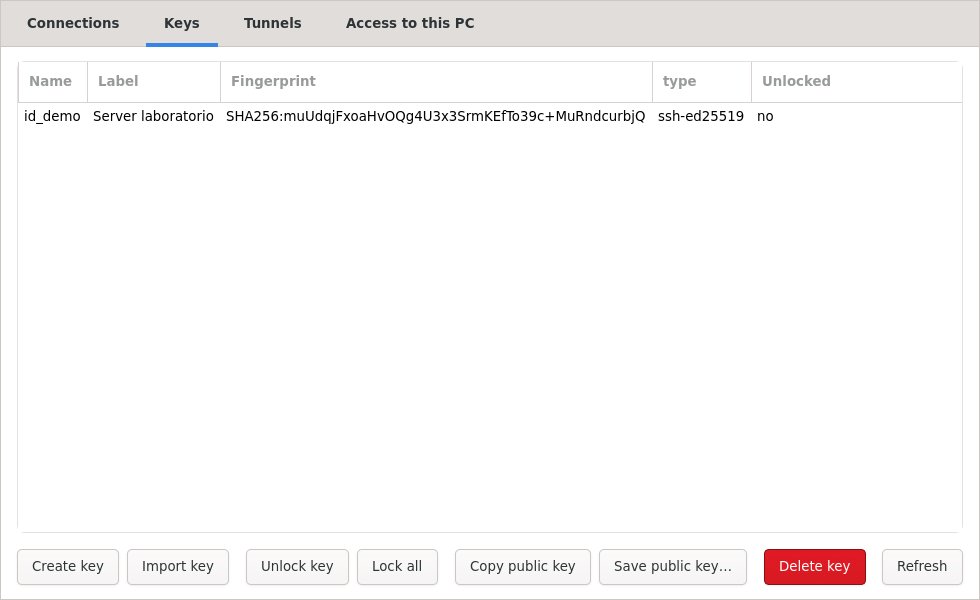
The table shows name, label, fingerprint, type and unlock state. Create key generates an Ed25519 pair; Import key registers an existing pair by reference. Unlock key uses the app private agent for four hours by default; Lock all clears it. Copy public key and Save public key help distribute only the public half. Delete key distinguishes a managed key, removed from disk, from an imported key, which is only unregistered. It refuses to delete a key still used by a profile. Refresh reloads the list.
Tunnels tab: local, remote and SOCKS
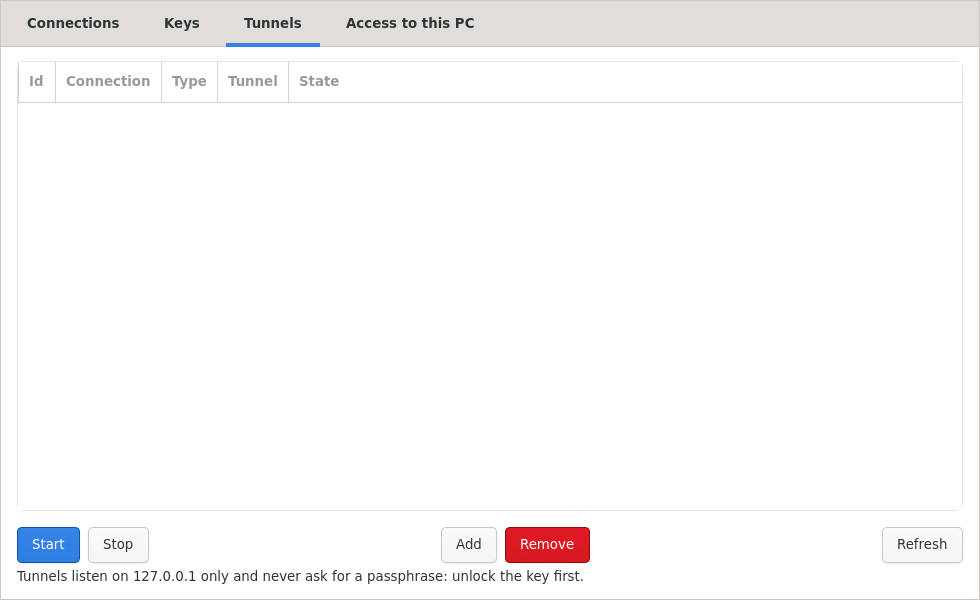
Add opens a form for profile, type, listening port and, for local or remote tunnels, destination host and port. SOCKS needs no destination. Select a tunnel and use Start, Stop or Remove; Refresh reloads its state. The interface reminds you to unlock an encrypted key before starting. Listeners are limited to localhost.
Access to this PC tab and integrated terminal
Access to this PC shows the local SSH server installation, service state, ports, addresses and host fingerprints. Install SSH server and Enable and start service are separate actions; Refresh reloads the status. Below, Authorize public key adds a public key to the current account, while Revoke selected removes an app-managed entry. These actions do not open firewall ports.
Each Connect opens a VTE terminal tab. Copy with Ctrl+Shift+C, paste with Ctrl+Shift+V or Shift+Insert, or paste with right-click. OpenSSH asks for passwords and passphrases inside the terminal; the app does not store them.
Use SSH EasyGUI alongside plain ssh
Integration is optional. ssh-easygui ssh-config on generates ~/.config/ssh-easygui/ssh_config and adds one Include directive at the top of ~/.ssh/config, keeping a backup. The app does not replace the rest of your SSH configuration. The host you type must match the profile address or its normalized alias.
ssh-easygui ssh-config on
ssh-easygui ssh-config status
ssh lab-server
ssh demo@192.0.2.10
scp ./file.txt lab-server:.
ssh-easygui ssh-config off
Advanced OpenSSH commands still work, including ssh lab-server uname -a and ssh -L forwarding. See the official ssh(1) and ssh_config(5) manuals for their options. Use the same local account: profiles and keys are per-user.
After pairing: turn off password login on the server
Once key access works, you can disable password authentication on the server by setting PasswordAuthentication no in a file under /etc/ssh/sshd_config.d/ and reloading the service. SSH EasyGUI does not do this for you: keep a second session open while testing, so you do not lock yourself out.
Live systems: reconnect to the same server after every boot
This section covers using SSH EasyGUI from a Live system, non-persistent or persistent, towards a server that always stays the same.
Non-persistent Live session
On a temporary Live system, install the package from a USB drive or a trusted source if it is not already part of the image, then set up a profile for the stable server. The Live client may receive a different IP after reboot. Key login still works if the server has not restricted the authorization with a from= option.
sudo apt install ./ssh-easygui_0.4.10_all.deb ./ssh-easygui-desktop_0.4.10_all.deb
ssh-easygui setup "Fixed server" --host 192.0.2.10 --user demo --file id_live_server
ssh-easygui connect "Fixed server"
If the Live home is lost at reboot, the private key, profile and host pin disappear. At the next boot, reinstall the app if required, generate a new key and pair again. The previous public key remains on the server; repeated pairing can accumulate entries in authorized_keys. Periodically revoke old app-managed authorizations with ssh-easygui access-list and ssh-easygui access-revoke ID on the server, or manage them using the server’s SSH tools. Do not store a private key on unprotected media.
Persistent Live session
When persistence covers the user home, ~/.ssh and ~/.config/ssh-easygui keep the key, profile and host pin; there is no need for a new key at every boot. Whether installed packages persist depends on the Live configuration. If only the home persists, reinstall the package after reboot. Unlock an encrypted key again after reboot. Encrypted persistence is preferable when it contains a private key.
If the server address changes, update the profile and check the host key. If its host key changes, SSH EasyGUI blocks the connection: compare the new fingerprint through a trusted console before accepting it. A Live system acting as a server may regenerate host keys after reboot; a host key shared by multiple machines does not identify the hardware.
Common problems
- Host key changed: the connection stops. A reinstalled server, a recycled IP or an attack: compare the fingerprint from the server console, then use
trustonly if the change is legitimate;checkandreconcilehelp after DHCP changes. - Permission denied after pairing: check the profile user and key with
ssh-easygui show NAME, confirm the server accepts key authentication and that another process has not rewritten the remote account’s~/.ssh/authorized_keys; repeatpair. - The tunnel does not start: with an encrypted key run
unlockfirst; if the local port is already in use the tunnel exits immediately (pick a free port). - mount does not work: install
sshfsand make sure FUSE is available; the local folder must exist and be empty. Unmount withssh-easygui unmount. unix_listener: cannot binderror with plain ssh: upgrade to 0.4.9 or later and runssh-easygui ssh-config onagain to regenerate the file.- Uninstalling: run
ssh-easygui ssh-config offfirst, otherwise theIncludeline stays in~/.ssh/config.removeandkey-removedo not touchauthorized_keyson the server: remove old public keys withaccess-revokeor with the server’s own tools.
Advantages, precautions and limits
| Advantage | What to know |
|---|---|
| Fast first setup with one command or the guided button. | Check the first host key out of band whenever possible. |
| A CLI for headless servers and a desktop GUI for PCs. | The remote SSH server must already be reachable; the app does not install services on remote hosts. |
| Stable names and per-profile host-key pins. | A reused IP or changed host key requires explicit review. |
| Works alongside plain ssh, scp and rsync. | ssh_config integration is opt-in and matches only configured profile hosts. |
| Persistent Live systems reuse keys and profiles. | Non-persistent Live sessions leave old public keys on the server until revoked. |
Downloads and source code
This guide is still a draft. Public links to the 0.4.10 packages and source code will be added when distribution is available; a private repository is not presented as a download destination. Until then, use only .deb files supplied from a trusted source and check their version before installation.
For protocol and client configuration details, see OpenSSH ssh(1) and OpenSSH ssh_config(5).
SSH EasyGUI: simple SSH, even from a Live system