

VlanManager is a focused desktop application for creating and managing 802.1Q VLANs on wired SysLinuxOS and Debian interfaces through NetworkManager. Version 0.1.1 configures IPv4 and IPv6, activates or deactivates connections, checks the gateway, and automatically restores an unconfirmed change. A common use is a laptop connected to a switch port that carries several tagged VLANs.
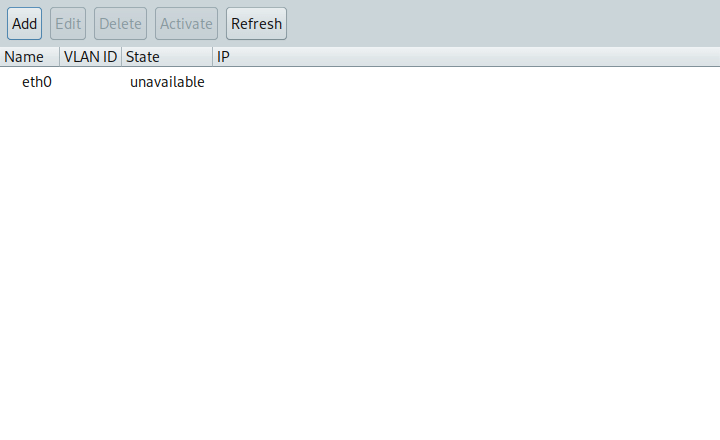
Main window on an English desktop: the Ethernet adapter appears as eth0 and currently has no link.
What VlanManager does
A VLAN adds a logical interface to a wired adapter. With a parent named eth0 and VLAN ID 20, VlanManager suggests eth0.20. Traffic on that interface uses the 802.1Q tag for VLAN 20; untagged traffic remains on the base Ethernet connection. The switch port must allow the selected VLAN: creating a profile on the computer does not configure the switch.
The main window groups VLANs under their parent adapter and shows name, ID, state, and IPv4 setting. You can add, edit, delete, activate, and deactivate connections. To identify the directly connected switch, port, and native VLAN first, see SysLinuxOS Network Neighbors; for discovering hosts and services on your local network, see LAN Discovery. The port VLAN reported through LLDP does not necessarily list every tagged VLAN permitted on a trunk.
Install with APT or a Debian package
On SysLinuxOS 13 or Debian 13 amd64, if the SysLinuxOS Tools APT repository is already configured, install version 0.1.1 with:
sudo apt update
sudo apt install vlanmanager
If the repository is not configured yet, use its official setup script to install the signing key and APT source, then install VlanManager:
curl -fsSL https://fconidi.github.io/SysLinuxOS-Tools/client/install-repo.sh | sudo bash
sudo apt install vlanmanager
Alternatively, download vlanmanager_0.1.1_all.deb from the GitHub release and run this command in the download directory:
sudo apt install ./vlanmanager_0.1.1_all.deb
APT resolves the declared dependencies: Python 3.11 or newer, GTK 3 with PyGObject, NetworkManager, and ping. The kernel must support the 8021q module. Launch VlanManager from the Network or SysLinuxOS Tools menu, or run vlanmanager. Run the GUI as a normal user; NetworkManager requests permission through polkit when a connection changes.
Create and configure a VLAN
Connect a wired adapter to a switch port that permits the tagged VLAN, select the adapter in the main window, and choose Add. The form lets you choose the parent interface, an ID from 1 to 4094, and the VLAN interface name. Keep the proposed name or change it within Linux’s 15-character interface-name limit.
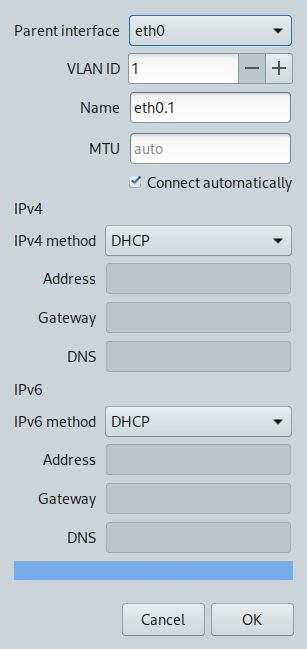
Create VLAN form: parent interface, VLAN ID, MTU, and separate IPv4 and IPv6 methods.
Choose automatic addressing, a static address, or disabled addressing independently for IPv4 and IPv6. For a static address, enter the address and prefix, such as 192.0.2.10/24 for IPv4 or 2001:db8::10/64 for IPv6; an optional gateway and DNS servers must match that field’s IP version. You can also choose automatic connection and an MTU. These addresses are documentation examples: use the values assigned to your network.
After you choose OK, VlanManager saves the profile in NetworkManager and attempts activation. Without a cable, a VLAN permitted on the switch port, or a DHCP server, activation may fail while the profile remains available. The subsequent message distinguishes a missing gateway from a gateway that does not answer. Select an existing VLAN to edit, activate, deactivate, or delete it.
Check connectivity and confirm changes
Creating, editing, deleting, or deactivating a VLAN opens a 20-second confirmation dialog. Choose Keep only when the change is right; Revert, closing the dialog, or letting the timer expire restores the previous state. For active devices, VlanManager asks NetworkManager for a checkpoint before changing anything, so NetworkManager can restore its saved state even if the GUI stops. When a checkpoint is unavailable, the application uses an in-process undo, which cannot run after a forced exit.
The checkpoint covers all network devices during the short confirmation window, so avoid unrelated network changes at that time. After a confirmed change, VlanManager reads the gateway from the active device configuration and sends one ping through the VLAN interface. A successful reply establishes reachability to that gateway; it does not establish reachability to every host on the VLAN.
Precautions and limits
VlanManager works with wired interfaces managed by NetworkManager and does not take over interfaces shown as unmanaged. A Wi-Fi client does not add 802.1Q tags to its own traffic: the access point decides the wireless VLAN. Check the VLAN ID, switch port, DHCP or static settings, and physical link before interpreting a reachability failure. Some adapters and drivers need attention to MTU when VLAN tags are added.
Version 0.1.1 does not create bridges or import and export groups of profiles. Do not launch the GUI with sudo; use the desktop authorization prompt when NetworkManager requires it.
Downloads and source code
VlanManager 0.1.1 release and Debian package
VlanManager 0.1.1 source code
SysLinuxOS Tools APT repository
VlanManager is free software under GPL-3.0. Original code and icon: Franco Conidi.
Leggi l’articolo in italiano: VlanManager: creare e gestire VLAN su Linux.
VlanManager: Create and Manage 802.1Q VLANs on Linux