

SysLinuxOS Network Neighbors shows, in a desktop window, the device connected directly to each network interface of your computer: switch name, the port you are plugged into, that port’s VLAN, protocol and details. It answers a question that comes up often on a network: “which port of which switch is this PC connected to, and in which VLAN?”. This guide covers version 0.1.3 for SysLinuxOS 13 and Debian 13.
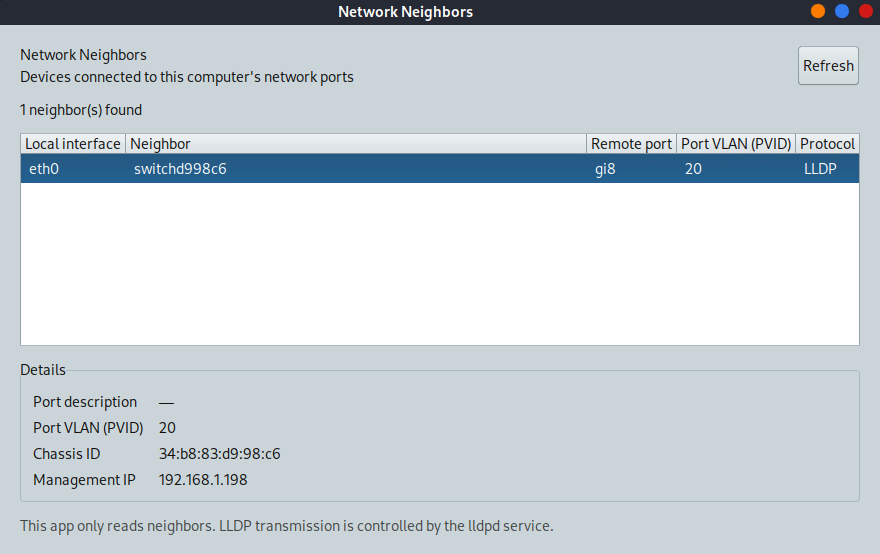
A PC connected to a managed Cisco switch: interface eth0, remote port gi8, port VLAN 20.
What it does and how it works
The application relies on LLDP (Link Layer Discovery Protocol, IEEE 802.1AB): a managed switch periodically announces on each port its own name, the port identifier, the management address and the port VLAN. The lldpd service on your computer receives these announcements, and Network Neighbors reads them with lldpcli and shows them in readable form. The program does not change the network configuration and does not start or stop lldpd: it only reads.
What you see
Local interface: the computer’s network card that received the announcement, for example eth0.
Neighbor: the name announced by the device; if it is missing, the chassis identifier.
Remote port: the switch port the cable is plugged into, for example gi8.
Port VLAN (PVID): the VLAN assigned to the port, when the switch announces it.
Protocol: the protocol the information came from, usually LLDP.
When you select a row, the Details box adds the port description, the port VLAN, the chassis ID (normally the switch’s MAC address) and the management IP address, handy for opening the switch’s web interface.
What the port VLAN (PVID) means
The PVID is the VLAN to which the switch assigns the untagged traffic entering through that port. In the example, port gi8 announces PVID 20, so the computer is in VLAN 20. The value appears only if the switch announces it through LLDP, and it does not list every tagged VLAN allowed on the port: for that you need the switch configuration. If no PVID is announced, the column shows a dash.
Installing Network Neighbors
You need SysLinuxOS 13 or Debian 13. The package also installs lldpd, GTK 3 and polkit by itself.
Method 1: APT repository (recommended, receives updates). Add the SysLinuxOS Tools repository once:
curl -fsSL https://fconidi.github.io/SysLinuxOS-Tools/client/install-repo.sh | sudo bash
Then install the application:
sudo apt install syslinuxos-network-neighbors
Method 2: Debian package. Download syslinuxos-network-neighbors_0.1.3_all.deb from the 0.1.3 GitHub release and, from the download folder, run:
sudo apt install ./syslinuxos-network-neighbors_0.1.3_all.deb
To remove it: sudo apt remove syslinuxos-network-neighbors.
Starting and using it
Open SysLinuxOS Network Neighbors from the Networking menu or from SysLinuxOS Tools, or run syslinuxos-network-neighbors in a terminal. Start the application as your normal user. If access to the lldpd socket is restricted to other users, a desktop authorization prompt appears: the program then runs a small helper that executes only the fixed neighbor query, nothing else. The Refresh button reads the list again; select a row to see its details. The interface follows the desktop language: English, Italian, French, German and Spanish.
The lldpd service: receive without announcing
Installing the package also installs lldpd, which may start and announce your computer to neighboring switches. If you only want to receive, without announcing yourself, set receive-only mode:
sudo nano /etc/default/lldpd
In the file set the following line, then save and restart the service:
DAEMON_ARGS="-r"
sudo systemctl restart lldpd
The package never changes this configuration. Check your network policy before leaving LLDP transmission enabled.
If the list is empty
An empty list does not necessarily mean a fault. Typical causes are: the switch is unmanaged (an inexpensive switch does not announce LLDP, and LLDP frames do not pass through an unmanaged switch), LLDP is disabled on the switch (enable it in its configuration), the cable is unplugged, or the announcement has not arrived yet: wait a few tens of seconds and press Refresh. To check without the graphical interface:
systemctl status lldpd
sudo lldpcli show neighbors
If the command shows the neighbor and the window does not, reopen the application and approve the desktop prompt.
Limits
Network Neighbors shows only the devices directly connected to the computer: it does not draw the network or list the other hosts. To discover hosts and services on the LAN use LAN Discovery, which builds a map of the local network; for monitoring and maintenance of the system see the guide to SysLinuxOS Care.
Downloads and source code
Repository and documentation
Version 0.1.3 release and Debian package
SysLinuxOS Tools APT repository
SysLinuxOS Network Neighbors is free software under GPL-3.0-only. Original code and icon: Franco Conidi.
Leggi l’articolo in italiano: SysLinuxOS Network Neighbors: switch, porta e VLAN con LLDP.
SysLinuxOS Network Neighbors: Switch, Port and VLAN via LLDP